AI is everywhere! From initial reactions a couple years ago (Hey, this is neat!) to the latest backlash against AI slop, it’s been quite the rollercoaster ride. As an artist, I have mixed feelings on the use of AI. Generally speaking, I’m open to use different implementations of AI to help me get my work done. Here are a few programs I’ve used.
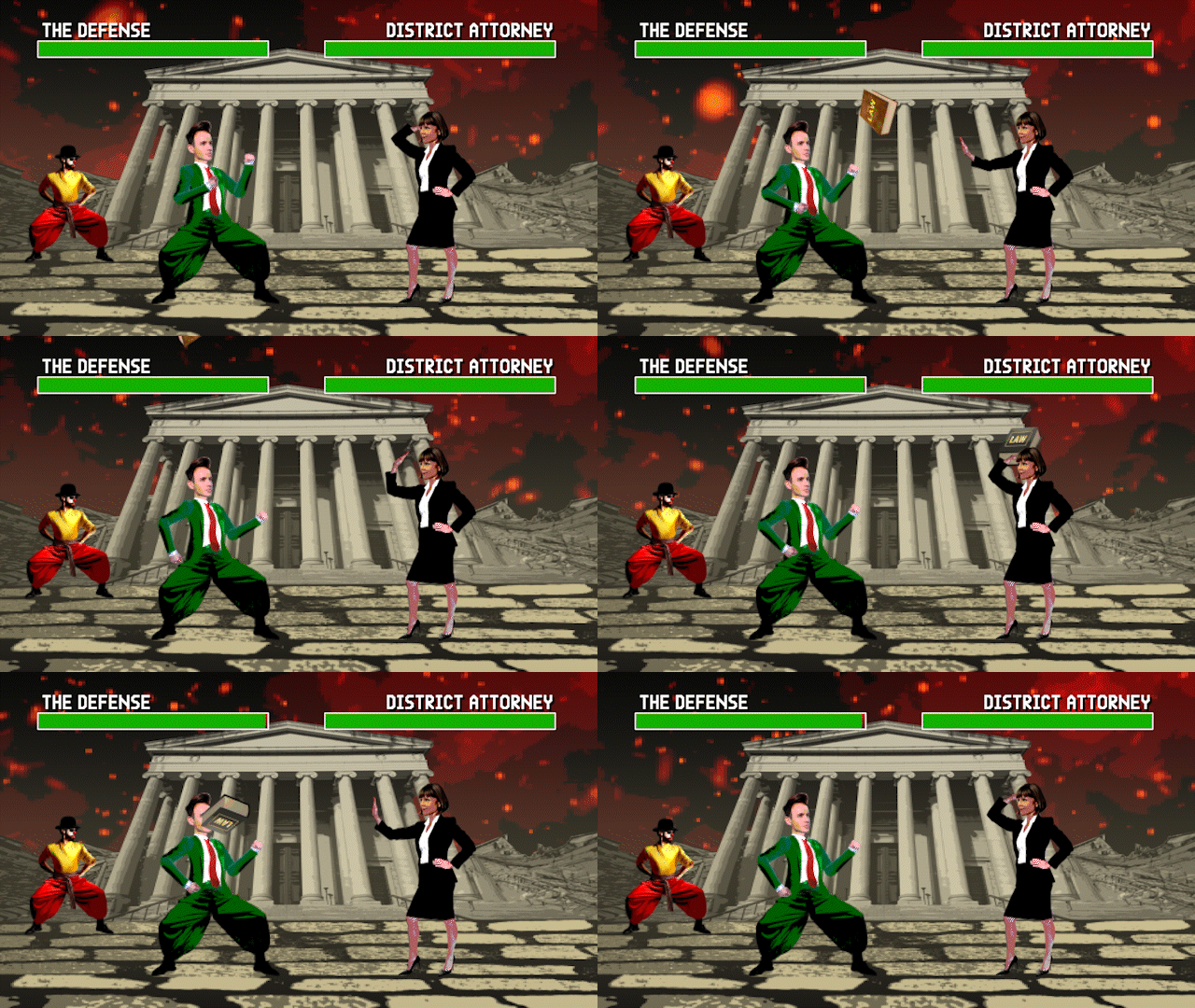
Photoshop outpainting and character generation
This is probably the most controversial use of AI I’ve dipped my toe into, so I’ll get it out of the way first. In animation for clients, I often need to build photorealistic worlds and props. I would usually source royalty-free images and video from sites like Pixabay.com. For this particular project, I was creating a parody of 1990s Mortal Kombat gameplay. For the background, I had a photo of a courthouse, but I needed to build it out with a post-apocalyptic landscape. Usually, I would use the clone tool to paint more steps and building elements. But Adobe had recently introduced “outpainting” in the form of the generate fill tool. It solved that clone issue in seconds and I could move on. For the sky I used some stock video and the foreground texture was another stock image.
In creating the characters for the scene, I knew they should be somewhat photorealistic. That was the thing that made Mortal Kombat unique at the time. My traditional method would be to make digital puppets from stock photos with heads, hands, and clothing from multiple sources. I did, in fact, do this a little bit, but then fed some of those stock images into Photoshop and asked it to give me back high-res versions in fighting poses.
I did not ask for animation, however. Instead, I took those AI still images and puppeted them myself in After Effects. That’s the fun, creative part — performing characters with exaggerated action and timing. I’m not in a hurry to give that up.
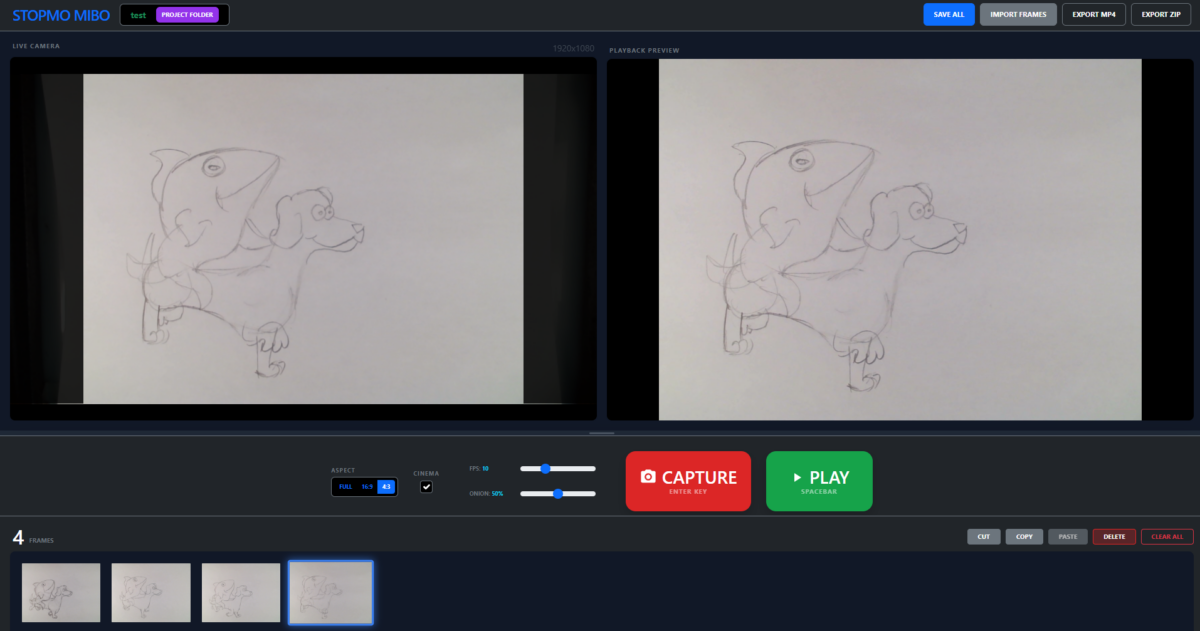
Vibe Coding with Gemini
I’m finding Google’s Gemini to be a good sounding board for topics. I ask it questions like “What are some ways I can build a stand for a TV monitor?”, “What are some solutions for reading old Mac diskettes?”, and “Can you help me with my Windows networking issues?” All lead to discussions that are more in depth than a web search… or rather if I did traditional searches, it would lead to hours of reading message boards and watching tutorials that often answer the wrong questions.
One thing I asked Gemini was to code a stop motion animation app for me. I typically use Dragonframe, but for my Animation Workshop students, it’s more than I need. I’ve also used the very affordable Stop Motion Studio, which is great in general, but there are a few things I wanted to improve about the experience. It can be slow to export and crash unexpectedly.
I had heard about vibe coding, but didn’t know what to expect. Would I need to know Python or another coding language? How would I get my code out of Gemini and use it locally? Can Gemini even code like Claude? (I haven’t tried Claude, instead I started with Gemini because I already use so many Google services.)
Well, I told Gemini what I wanted, and it wrote something in Javascript that runs right in Chrome. Impressive. I then proceeded to tweak the look and functionality over several weeks in our Animation Workshop classes. I would watch our students use the app, and when they found glitches or stumbled over UI issues, I would go back to Gemini and ask for changes. It helped that I knew HTML and some CSS, but for the most part I didn’t need to get into the nuts and bolts of code.
The biggest issue I’m having with vibe coding is the tendency for the AI to undo functions that are already working. I’ll ask for a button to be moved and it will make the change… along with changing the name of some other buttons and breaking the “save” function, for instance. I’ve taken to finishing my commands with “Don’t make any other changes,” which usually helps.
Is vibe coding unethical? Where is Gemini getting its stop motion interface and code from? Well, at this point I wouldn’t feel right about selling this app. (I don’t want to support software, for one thing.) But also, I didn’t write it! If anything, I’m acting as “developer.” One of my students insists that to use the app ethically, we should go into the code ourselves and modify it, make our own changes to make it our own. But I want to iterate quickly. I keep coming up with new functions to add, and Gemini can do that — even if I have to double check that old functions don’t break.
My bottom line on this is that I want to shoot animation, and the movies themselves are the creative output. So the AI generated product — the software — is a tool I’ll gladly use to that end.
I look forward to vibe coding some other software in a similar vein. I already started on screenplay software (watch out Final Draft, your days are numbered) and a hand-drawn animation app. I could see using Gemini to help with scheduling and call sheets, especially since it talks with Google Sheets fairly well.

Querying Interview Transcripts with Notebook LM
I first heard of Google’s Notebook LM as a way for researchers and journalists to query a corpus of documents. I watched a tutorial (geared towards college faculty) that described how to upload class materials and create slide decks from them. Sure, Notebook LM could hallucinate and regurgitate bad info, but professors should be able to fix that, right?
One day while editing a documentary feature with thirty-eight plus interviews, I remembered Notebook LM. I uploaded all my transcripts (generated by Adobe Premiere and exported as TXT files) and started asking questions. Who spoke on certain topics? What are some related sub-topics? The AI gave quality responses with links back to the source transcripts.
I got excited. I told Notebook LM I was editing a documentary and asked it to suggest quotes around a topic, with names of the individual speakers and the timecodes related to source transcripts. Worked really well! Not flawlessly — sometimes the AI would misunderstand who was speaking in a given transcript, but that’s my job to catch those errors, right?
So the next step was to track down those quotes (timecode helped) and put them in the right order. It’s a rough draft to get the ball rolling on a given scene, not the final scene. I’d love it if this was built into Premiere so it could do that rough draft with one click, but maybe in the near future.
Adobe Podcast Enhance Speech
This is why it pays to keep abreast of new Adobe releases. A few years ago, I was working on a documentary where the sound for one interview was recorded poorly. I struggled to boost the bass and clear up the audio with Premiere’s traditional tools, but I was never satisfied with the results.
Then Adobe Podcast came out.
The marketing for Adobe Podcast is all about helping normal people record and edit podcasts without high-end software. To this day, it’s a web app only. But its “enhance speech” function is so good, it’s downright spooky. It cleaned up my bad audio without any tweaking. I’ve since used it on problem audio in multiple projects, including sections with too much echo, wind, even background noise at a party. One challenge can be overmodulation — it’s hard to do away with that kind of corruption.
Put simply, you upload your audio file, and the app gives you a remarkably clean result. It’s not a filter, instead the AI analyzes the file and essentially recreates the voice. You move a slider to choose how much processing to apply. You want to be careful that the app doesn’t clip the beginning and end of spoken words too much.
Background noise is also given a volume slider, so you don’t accidentally take out too much roomtone. (For example, it might look strange to hear someone talking in a windy outdoors to sound like they’re in a perfect recording studio.)
Adobe has since brought a version of enhance speech into Adobe Premiere, but it’s not as versatile. It also has the annoying habit of requiring long re-render times whenever you razor a clip that has the effect. I still prefer to round-trip my selects to the web app and back because even though it’s a hassle, the results are better.

Corridor Key
Here’s one I haven’t used yet, but I will the next time I have greenscreen footage to work with. Corridor Digital developed an AI workflow to deal with pulling better keys from bad (and good) greenscreen video. Niko of Corridor oversaw the training of an AI model to understand what to look for in a good key, then released the results for free to the public. Several plugin and app makers have taken that ball and run with it, notably EZ Corridor Key.
I worked on a feature last year that had a TON of greenscreen, and no matter what they say, it’s not easy. I’m better at it than I’ve ever been, but I’m looking forward to letting AI take the reigns next time.
As Niko points out, AI is everywhere in VFX workflows. Machine learning tools include magic mask, roto brush, up-resing, noise removal, sky replacements, blemish removal, even stabilization. The important thing as I see it is to use AI tools to help you get to the point where you can be creative, NOT take the place of being creative. We all have a line we don’t want to cross, but it may take a little bit of experimentation with AI to find out where that line is.
You may also like this

Haunted Circuits Short Film Proposal

Formatting a screenplay with musical sequences

Virtual discussion of the animated film The Wolf House

100 Days of T-shirts